From Azure Function to MCP Server for Copilot Studio
If you already have business logic deployed on Azure Functions, you don't need to rewrite it as an MCP server for an agent to use it. Azure API Management (APIM) can take the REST operations you already publish and expose them as MCP tools, and Copilot Studio can connect to that MCP server like any other.
In this post I build it end to end with a small but complete sample that answers a very specific question: "Should I go running in Barcelona today?"
All the code is on GitHub: ricardPlana/SurvivingDynamics_MCPServer. It includes the Function, the web app, the OpenAPI contracts, the tests, the Bicep infrastructure, the deployment script, and a step-by-step guide (in Spanish).
The idea: your Function doesn't need to speak MCP
The Function does not implement MCP. It exposes four regular HTTP operations and APIM does the rest:
- APIM imports the Function's OpenAPI contract twice: a public API for the web app (
/weather) and a subscription-protected one for the agent (/copilot-weather). - On top of the agent's API, you create an MCP server in APIM and choose which operations become tools.
- Copilot Studio connects to the
/mcpURL generated by APIM over Streamable HTTP, with the subscription key in a header.
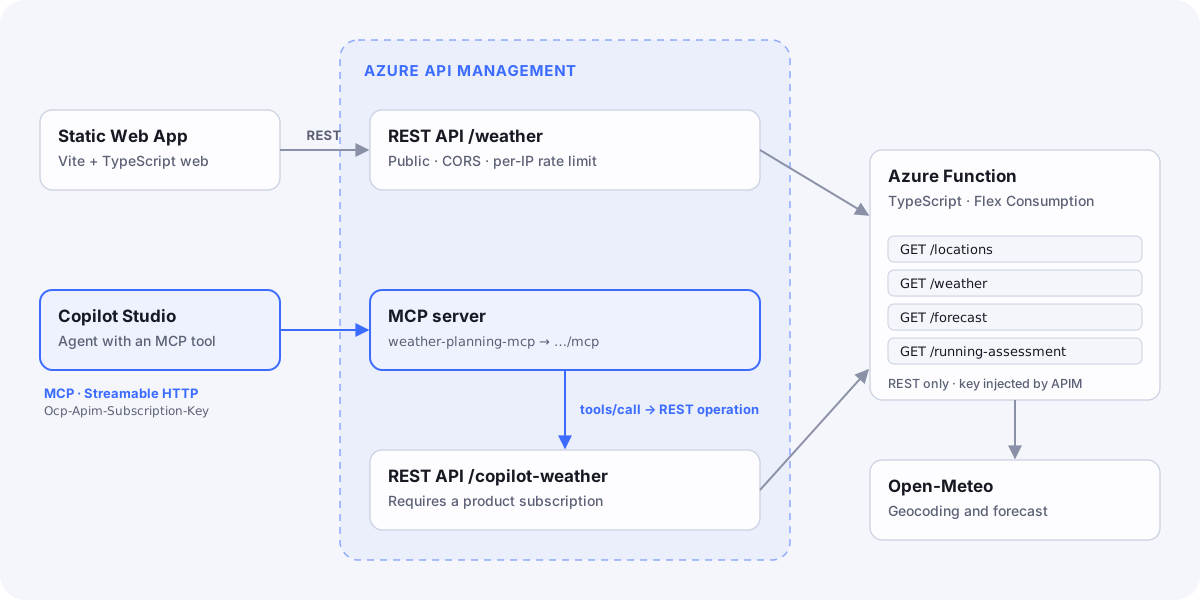 Architecture: the web app and Copilot Studio share the same Azure Function through API Management
Why I like this approach:
- One logic, two callers. The web app and the agent use exactly the same rules. Change a threshold and it changes for both.
- No MCP SDK, no new hosting. What you already run in production works as is.
- The gateway is the boundary. Keys, products, subscriptions, CORS, per-IP limits and monitoring live in APIM, not in the code or the prompt.
The sample: one question, four tools
The Function (TypeScript, Flex Consumption) exposes four GET operations backed by Open-Meteo:
| Operation | Purpose |
|---|---|
/locations?query= | Returns up to ten places with country and region, for disambiguation |
/weather | Current conditions |
/forecast | Daily forecast: min, max, rain, wind and sky condition |
/running-assessment | Applies an explicit rule and explains whether running is advisable |
The rule lives in the API, not in the prompt
For me this is the key design decision. The recommendation is not decided by the model: the API computes it with transparent demo thresholds.
| Daily value | Criterion |
|---|---|
| Minimum temperature | At least 5 °C |
| Maximum temperature | At most 30 °C |
| Precipitation | At most 2 mm |
| Maximum wind | At most 25 km/h |
The response returns the recommendation together with the evidence: reasons, thresholds, forecast and a disclaimer. The agent presents verifiable data instead of inventing criteria:
1{
2  "activity": "running",
3  "recommendation": "recommended",
4  "city": "Barcelona",
5  "country": "Spain",
6  "date": "2026-10-21",
7  "reasons": [],
8  "thresholds": {
9    "minimumTemperatureC": 5,
10    "maximumTemperatureC": 30,
11    "maximumPrecipitationMm": 2,
12    "maximumWindSpeedKmh": 25
13  },
14  "forecast": {
15    "minimumTemperatureC": 10.4,
16    "maximumTemperatureC": 21.7,
17    "precipitationMm": 0,
18    "maximumWindSpeedKmh": 12.6,
19    "condition": "Overcast"
20  },
21  "disclaimer": "A simple demo heuristic, not medical advice or an official safety warning."
22}
Another important detail: ambiguous cities are explicit. If several places share a name, the API returns 409 city_ambiguous with suggestions instead of picking one at random. The agent searches for the location first and then passes city, country and admin1 as separate fields.
Step 1: deploy the foundation
The repo includes a PowerShell script that deploys the whole infrastructure:
az login
az bicep install
.\infra\deploy.ps1 -ResourceGroupName rg-sd-weather-demo -Location westeurope -PublisherEmail you@example.com
It creates storage, the Flex Consumption Function with managed identity, the Static Web App and APIM (Developer tier). Then it publishes the Function and the web app and imports both APIs into APIM.
The Function uses authLevel: "function", but the key never reaches the frontend or the agent. An APIM policy injects it from a secret named value and applies the per-IP limit:
1<rate-limit-by-key calls="60" renewal-period="60" counter-key="@(context.Request.IpAddress)" />
2<set-query-parameter name="code" exists-action="override">
3  <value>{{function-key}}</value>
4</set-query-parameter>
What the script does NOT do: create the MCP server, connect Copilot Studio, or apply the step 2 fix. Those steps are manual in the portal.
Step 2: fix the URL templates (the detail nobody tells you)
This was the most interesting issue in the project. APIM discovered the tools just fine, but built calls with optional parameters incorrectly. The Function received values like city=Barcelona?country=Spain, and the forecast failed with invalid_date even though the date was valid. The same call made directly over REST worked perfectly.
The fix I verified was to include every parameter in the operation's URL template, on the Copilot API only. In APIM → APIs → Weather for Copilot Studio → Design → Frontend:
| Operation | Template |
|---|---|
| Current weather | /weather?city={city}&country={country}&admin1={admin1} |
| Forecast | /forecast?city={city}&date={date}&country={country}&admin1={admin1} |
| Running | /running-assessment?city={city}&date={date}&country={country}&admin1={admin1} |
| Search (unchanged) | /locations?query={query} |
If country and admin1 end up duplicated under Query parameters, remove those entries and keep the ones under Template parameters.
The cost of this fix: those fields become required on the agent's API. That's why the instructions tell the agent to always search for the location first. The public API and the Function don't change. And note: if you reimport the API, you'll have to reapply the fix.
Step 3: create the MCP server in APIM
In your APIM instance, go to APIs → MCP Servers → Create MCP server → Expose an API as an MCP server:
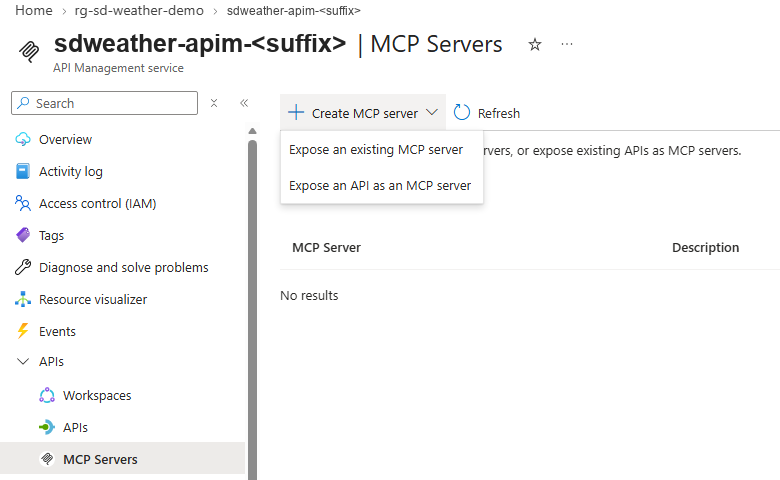 APIM: Create MCP server menu with the Expose an API as an MCP server option
Select the Weather for Copilot Studio API and the operations you want to expose as tools. Give it a name (weather-planning-mcp) and a clear description (the agent uses it to understand what the server is for), and assign it to a product:
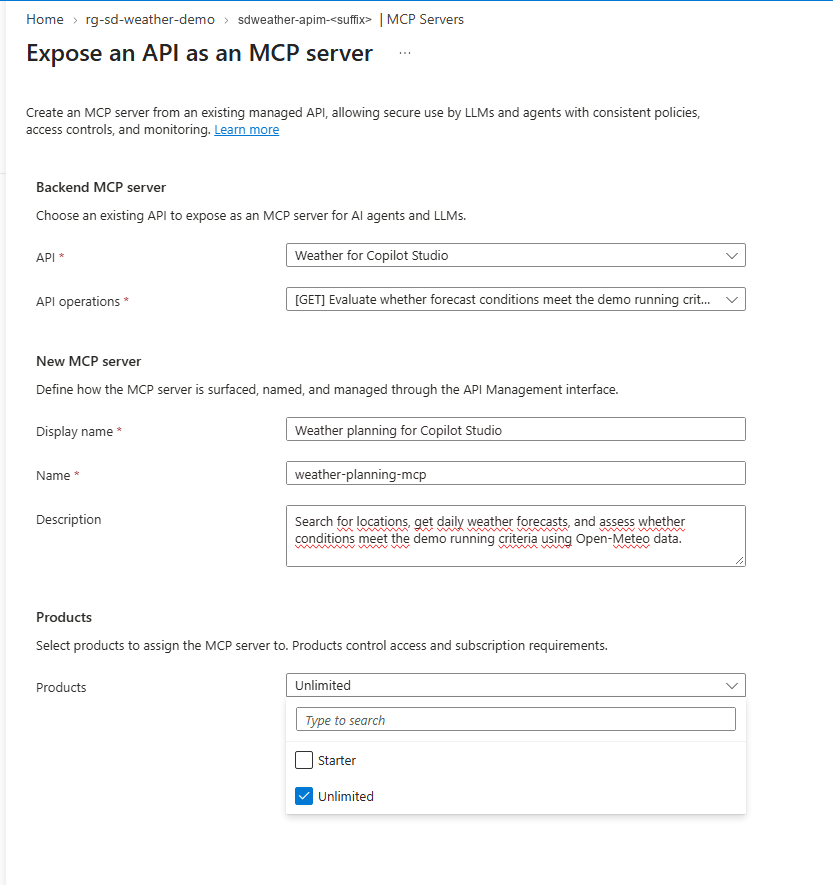 Expose an API as an MCP server form: API, operations, name, description and product
APIM generates a Server URL ending in /mcp. That's the URL Copilot Studio needs, not the REST API base URL:
 The MCP server created in APIM with its Server URL
Important: associate the MCP server and the source REST API with the same protected product, and enable Subscription required on both. If you only protect the MCP server, initialization works but every tool call fails with
401.
Also keep in mind that APIM's MCP support exposes tools, not resources or prompts.
Step 4: a subscription for the agent
In APIM → Subscriptions, create a subscription scoped to the product you assigned the MCP server to. Don't use the built-in all-access subscription for an agent:
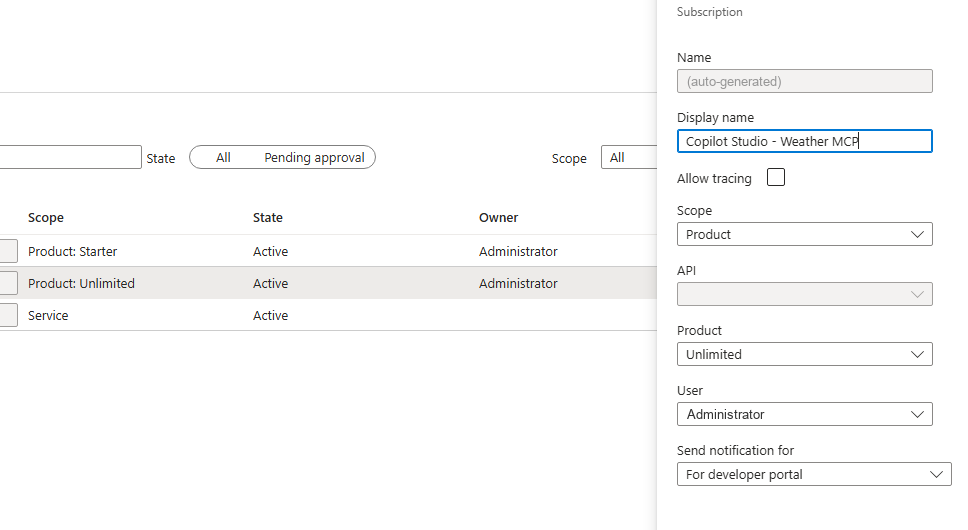 Creating an APIM subscription scoped to the product for Copilot Studio
Keep the two credentials straight: the Function key stays inside APIM, and the subscription key is the only thing Copilot Studio gets.
Step 5: connect Copilot Studio
In your agent, go to Tools → Add a tool → Add → Model Context Protocol (MCP):
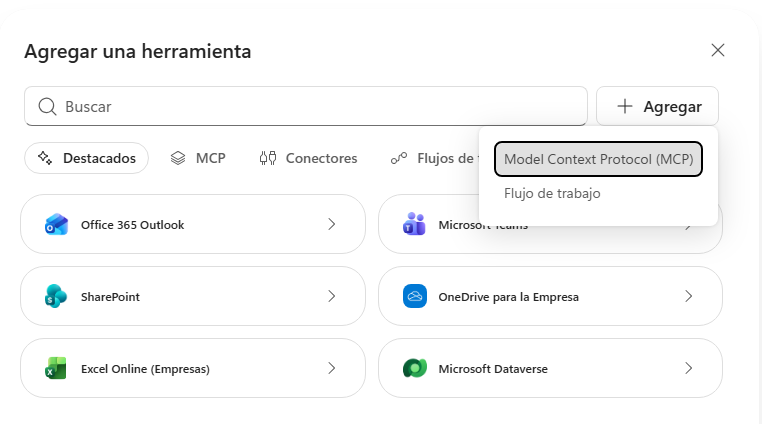 Copilot Studio: adding a Model Context Protocol tool
Fill in the name, the description and the server URL copied from APIM. For authentication, choose API key, location Header and name Ocp-Apim-Subscription-Key:
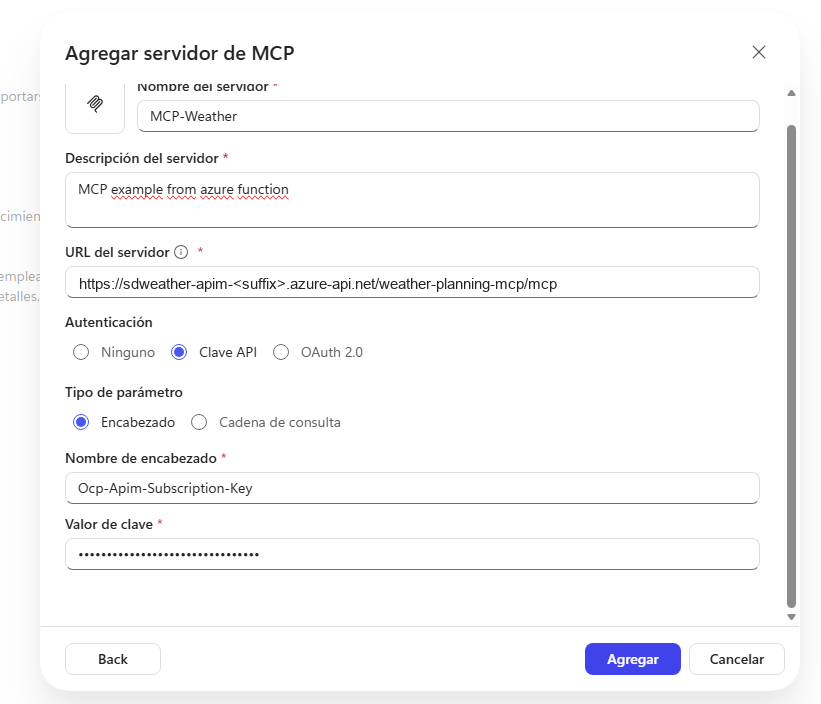 Add MCP server form with API key authentication in the Ocp-Apim-Subscription-Key header
Finally, create the connection with the subscription key from step 4. The key lives in the connection: never in the prompt, the repo or the frontend.
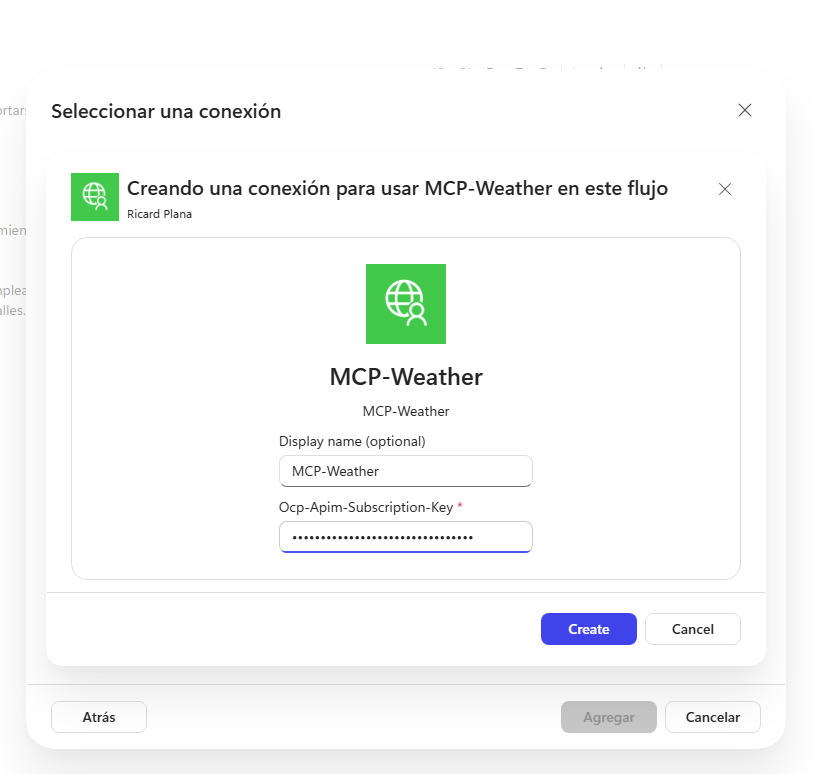 Creating the Copilot Studio connection with the APIM subscription key
Step 6: agent instructions
APIM generates tool names from the OpenAPI summaries. In my case they were findMatchingCitiesAndRegions and evaluateWhetherForecastConditionsMeetTheDemoRunningCriteria. These are the instructions I used (the agent was in Spanish):
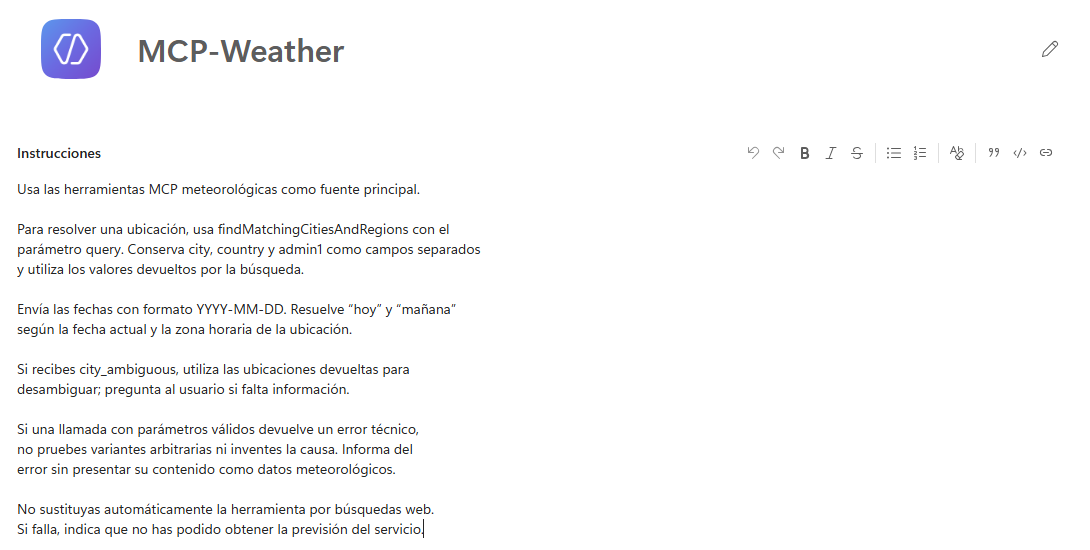 MCP-Weather agent instructions in Copilot Studio
Here they are in English:
1Use the MCP weather tools as the primary source.
2
3To resolve a location, use findMatchingCitiesAndRegions with the
4query parameter. Keep city, country and admin1 as separate fields
5and use the values returned by the search.
6
7Send dates as YYYY-MM-DD. Resolve "today" and "tomorrow" using the
8current date and the location's time zone.
9
10If you get city_ambiguous, use the returned locations to
11disambiguate; ask the user if information is missing.
12
13If a call with valid parameters returns a technical error, don't
14try arbitrary variants or guess the cause. Report the error without
15presenting its content as weather data.
16
17Don't automatically replace the tool with web searches.
18If it fails, say you couldn't get the forecast from the service.
The last instructions come from experience: when a tool failed, the agent tried variants and ended up answering from a web search. The prompt shapes behavior, but it doesn't fix URLs or authentication. For a tool-focused demo, also disable web search as a knowledge source.
The result
I ask the agent "can I go running in Barcelona today?". It searches for the location first, then calls the assessment and answers with the forecast, the criteria applied and the demo disclaimer:
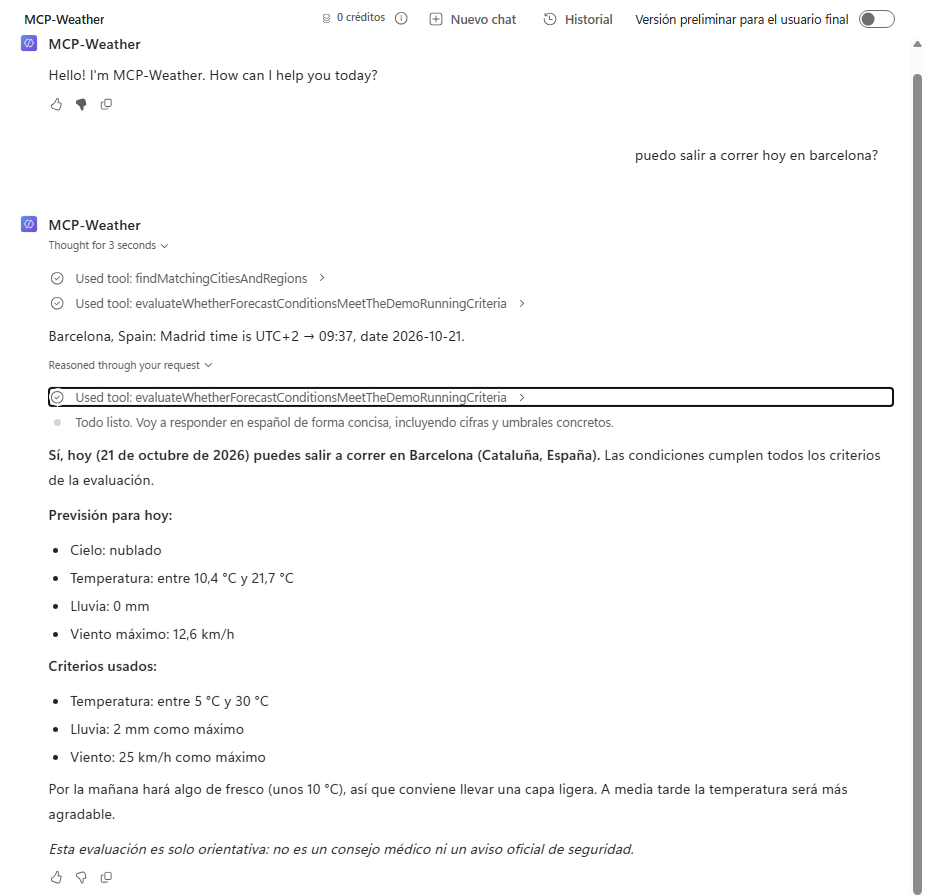 Copilot Studio test: the agent uses the MCP tools and answers with the running assessment
Validate layer by layer: a 200 doesn't mean it works
The most important technical lesson of the project: an agent discovering the tools doesn't prove they work. Validate each phase separately:
| Phase | What it proves | What it doesn't prove |
|---|---|---|
initialize | Endpoint access and MCP negotiation | That the source REST API works |
tools/list | Tool discovery and schema | That parameters are built correctly |
tools/call | Real execution | Business success, unless you inspect the content |
In my tests, APIM returned HTTP 200 and isError: false even when the tool text contained a 401 or an invalid_date. Real success means finding the forecast or assessment fields in content[].text.
Lessons learned
- Keep business decisions in the API. The model picks tools and explains results; the API validates, resolves and computes.
- Small, composable tools. Search, query and assess are separate operations the agent chains together.
- Resolve entities before acting. An explicit search keeps the agent from guessing which "Barcelona" you mean.
- Diagnose layer by layer. Before touching validation or prompts, separate protocol, authentication and business logic, and always compare with the direct REST call.
- Don't hide errors. Neither the API nor the agent should fill gaps with made-up data.
Limits and costs
- APIM Developer is a billable tier with no production SLA, and it takes a while to provision.
- The web app's public API is anonymous: CORS and per-IP limits are not authentication.
- Open-Meteo's free tier is for non-commercial use and requires attribution. Check its terms before using it elsewhere.
- The thresholds are demo values, not medical or safety advice.
- Portal configuration (MCP server, templates, connection) is not automated.
When you're done, delete the dedicated resource group (check first that it only contains demo resources) and remove the connection in Copilot Studio, because deleting Azure resources doesn't remove it:
az group delete --name rg-sd-weather-demoTry it yourself
- Code: github.com/ricardPlana/SurvivingDynamics_MCPServer
- Complete guide (Spanish) covering local run, deployment, validation and troubleshooting: docs/guia-completa.md
- Azure configuration reference (English): docs/azure-configuration.md
- Official docs: expose a REST API as an MCP server in APIM and connect an MCP server to Copilot Studio.
If you have APIs on Azure Functions, this pattern lets you make them available to your agents in an afternoon, without rewriting anything.